
Conditional forms are where a simple autofill promise meets the real browser.
One answer can reveal a new section. A dropdown can change the next page. A “yes” can open a document request, while “no” skips it. A form may look complete until a hidden branch becomes visible after you make a choice.
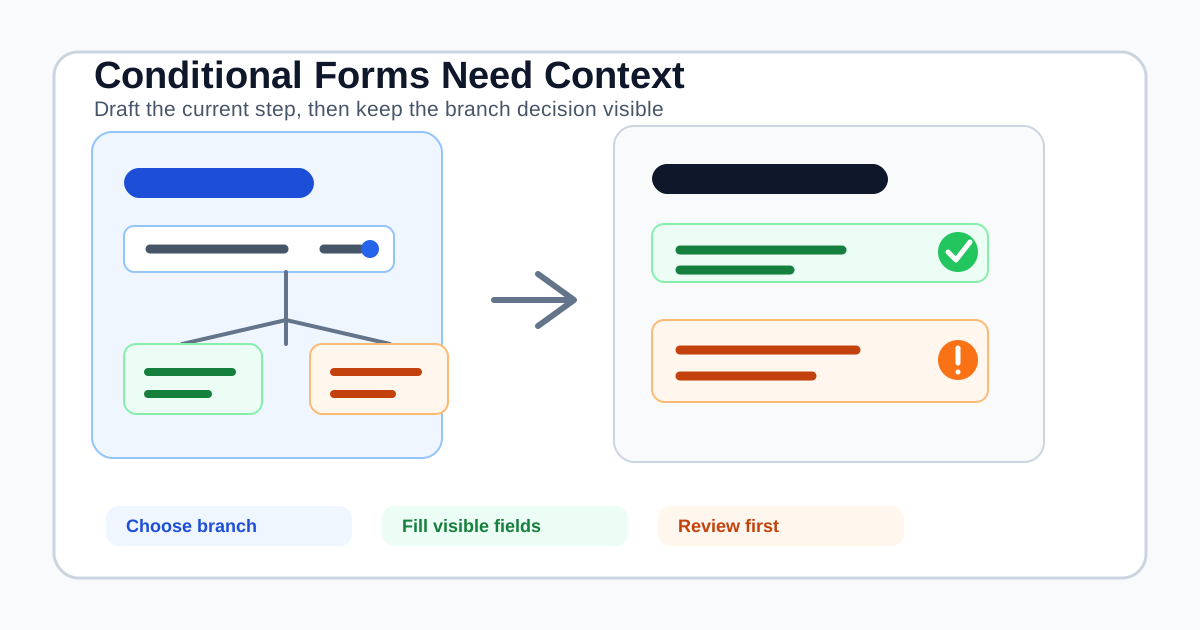
So can an AI form filler handle conditional logic? Sometimes, but the answer depends on what you mean by “handle.” Filling the visible fields on the current page is one capability. Choosing a branch, navigating a wizard, creating repeated sections, and submitting the final record is a much larger automation problem.
This guide explains the difference, what to test before buying, and where SmartAutoFill fits for teams and individuals who want a reviewable browser draft rather than a blind form bot.
What conditional logic changes
In an ordinary static form, the set of visible questions stays mostly stable. The user provides values, the page validates them, and the form proceeds to its submit control.
Conditional logic adds an if-then relationship:
- If the respondent selects a particular service, show the related requirements.
- If a company has employees, ask for headcount and benefits details.
- If a buyer needs an enterprise plan, reveal procurement or security questions.
- If an applicant has previous experience, reveal work-history fields.
- If a user answers “yes,” request a supporting document or explanation.
Microsoft's branching guide describes this model directly: a survey or quiz can show only relevant questions and redirect a respondent to a different section based on an earlier answer. FormAssembly's explanation of conditional logic makes the same point from a form-design perspective: the next question depends on the previous response.
For the person completing the form, this creates three kinds of state:
- Visible state: fields and instructions currently on the page.
- Branch state: answers that determine what will appear next.
- Submission state: values, choices, files, and consent that the destination will actually receive.
An AI form filler may be good at the first state without owning the other two. That is not a defect if the product says so clearly. It becomes a problem when “AI autofill” implies that a generated plan understands every future page and every consequence of a branch.
Four levels of conditional-form automation
Use this scale when comparing products.
Level 1: Fill visible compatible fields
The extension scans the current page and drafts values for fields it can interpret. It may use a saved profile, pasted context, or selected materials. You inspect the page and decide what to do next.
This is the narrowest and easiest capability to verify. It works well when the current page exposes ordinary text inputs, textareas, and compatible native selects with enough labels and surrounding context.
It does not require the tool to guess which branch should be chosen. You make that choice, and the page reveals the next state.
Level 2: Fill after the user changes a branch
The user selects the relevant answer or advances to the next step. The extension scans the newly visible fields and drafts another set of values.
This can be a practical workflow for multi-step applications, onboarding pages, and internal questionnaires. The user remains the state manager: they decide whether the branch is correct, and the extension helps with the repetitive fields that appear afterward.
Level 3: Navigate a multi-step flow
The tool clicks Next, waits for the page to update, reads the new form state, and continues across several pages. It must preserve context, distinguish a next-step control from save or submit, handle validation failures, and stop when the page changes unexpectedly.
This is closer to browser-agent automation than ordinary form filling. It needs stronger permissions, more state tracking, and a more explicit failure and approval model.
Level 4: Decide branches and submit
At this level, an agent chooses answers that trigger branches, fills the resulting pages, handles attachments and consent, and submits the final record. That may be appropriate in a tightly governed workflow with fixed inputs, approvals, audit logs, and a system owner.
It is a risky default for job applications, client intake, financial records, procurement, security questionnaires, and any form where a wrong answer creates a commitment. A complete-looking page is not proof that the selected branch or final declaration is correct.
Where SmartAutoFill fits
SmartAutoFill is a Chrome extension for review-first AI form filling. It looks at the visible page, uses selected profile or context, and applies a draft to compatible fields. The supported fields and data-handling reference describes the current behavior in detail.
Its practical model for conditional forms is:
- Scan the current visible page.
- Fill compatible text-like fields and supported native selects when the context is strong enough.
- Leave radio buttons and checkboxes for manual handling.
- Let the user choose the relevant branch and move to the next page.
- Scan the newly visible page again when the user decides to continue.
- Review the values on the page and submit through the form's own control.
SmartAutoFill does not promise site-specific branching support, universal compatibility with React or other custom widgets, automatic navigation across every wizard, repeated-section creation, or blind submission. That boundary is important: the product is helping transfer known context into a form, not taking ownership of the form's business logic.
For richer context, paid hosted AI Materials Pro can use supported sources such as pasted text, the current page, website URLs, PDFs, Markdown, PNG, JPEG, and WebP, subject to the current limits in the pricing page. It can inform a draft, but a source document is not permission to select a legal, financial, identity, consent, or policy answer automatically.
Why hidden fields are not the same as future fields
A conditional form may hide fields until an answer changes. The browser can still have an underlying DOM structure, but that does not mean the fields are ready to receive a value or that the destination will accept it.
The distinction matters for both reliability and privacy:
- A hidden field may not be visible to the user and may not participate in the current interaction.
- A disabled control cannot be edited or submitted until the page enables it.
- A field created after an answer may have new labels, validation, and instructions.
- A custom widget may store its state outside the ordinary input element.
- A page may reset later answers when an earlier branch changes.
MDN's documentation on disabled controls notes that disabled controls cannot be focused or submitted until they are enabled. That is a useful reminder when evaluating “fills every field” claims: a field that exists in HTML is not necessarily a field that should be filled now.
The safer workflow is to fill only the state the user can see and understand, then re-evaluate after a deliberate branch choice. That keeps the source, destination, and user decision aligned.
A conditional-form buying checklist
Before you pay for an AI form filler, test the following questions on a representative form.
Does it scan only the current page or the whole workflow?
Ask whether the product sees the visible page only, or whether it navigates through multiple steps. If it navigates, find out how it handles a new page, a validation error, a timeout, or a changed branch.
Who chooses the branch?
For low-risk internal practice forms, guided branch selection may be enough. For legal, financial, identity, security, or consent questions, the accountable user should choose and verify the answer. Do not let a generic profile turn an ambiguous “yes or no” into an irreversible commitment.
What happens to radio buttons and checkboxes?
These controls often determine which questions appear next. A product that fills text but cannot reliably select choices should make that visible. SmartAutoFill detects but does not fill radio and checkbox state, so the user handles those decisions manually.
Does the tool understand the page after it changes?
A branch may reveal a new upload, a custom dropdown, or an additional repeating section. Check whether the extension can rescan the current page and whether the user can see what it skipped.
Can you stop before the final action?
Review is not just a confirmation dialog. You should be able to inspect the actual page, current branch, generated values, selected material, required fields, and final declarations before submission.
What does the product explicitly not do?
Good documentation should name unsupported controls and risky fields. Look for clear boundaries around passwords, payment information, CAPTCHA, identity verification, signatures, consent, sensitive records, file uploads, iframes, and blind submission.
A review-first workflow for branching forms
For a real workflow, use this sequence:
- Classify the form. Decide whether it is a test page, a low-risk internal record, a job application, a client intake, or a binding external submission.
- Prepare only relevant context. Use a narrow saved profile or scenario. Add selected AI Materials Pro sources only when they belong to this task.
- Choose Safe Mode for serious work. More Mode can broaden hosted planning on lower-risk pages, but it does not make sensitive or unsupported controls safe.
- Scan the current page. Let the tool draft ordinary visible fields. Treat blanks and skipped fields as useful signals, not failures to be bypassed.
- Review branch choices manually. Confirm that each choice reflects the actual situation and that it should reveal the next section.
- Advance one step. After the page updates, rescan rather than assuming that yesterday's plan still applies.
- Inspect new fields and attachments. Check the source, version, recipient, required format, and any claim that needs specialist approval.
- Review, then submit manually. The user accountable for the record owns the final action.
Use the public AI form filler test page with fake, non-sensitive data before trying a production form. If the workflow relies on custom dropdowns, checkbox state, iframes, or repeated sections, record those gaps before you evaluate the paid plan.
When an AI form filler is the wrong tool
Conditional logic does not turn a browser form into a safe automation target. Do not use a general AI form filler for:
- Credential stuffing, account takeover, or bypassing CAPTCHA, OTP, or verification controls.
- Passwords, payment cards, bank instructions, tax submissions, or identity verification.
- Selecting legal, medical, financial, or security commitments without qualified review.
- Sending the same generated answer through many branches or destinations.
- Replacing a form builder, workflow engine, CRM integration, approval system, or audit trail.
- Spam, fake applications, fabricated survey responses, or deceptive outreach.
These workflows need purpose-built controls, not a more aggressive browser extension. This is the negative ICP for a general AI form filler. SmartAutoFill is not a password manager, payment autofill tool, or autonomous browser agent. Users remain responsible for sensitive, legal, payment, password, identity, consent, and final submission decisions.
The short answer for buyers
Choose an AI form filler when you need help drafting the current visible step from reusable context and you are willing to review the result. Choose a browser agent only when you have a controlled multi-step workflow, explicit approvals, reliable failure handling, and an owner for every submitted record.
SmartAutoFill sits in the reviewable middle: it can reduce repeated typing on compatible visible fields, let you choose the branch, and help you continue one step at a time. It does not pretend that a generic profile understands every conditional question or that a filled page is ready to submit without inspection.
Start with the AI form filler product overview, test the workflow on a safe sample page, and review SmartAutoFill pricing only after you know the form's branch choices and unsupported controls. The right question is not “Can this tool fill every page?” It is “Can it help with the repetitive fields while leaving branch decisions and final responsibility with the person who understands the form?”