
CRM form autofill is not only about saving a few seconds on contact creation. For sales, support, recruiting, and operations teams, the bigger value is consistency. The same customer, lead, vendor, applicant, or partner information often moves through several systems, and every manual copy creates a chance for drift.
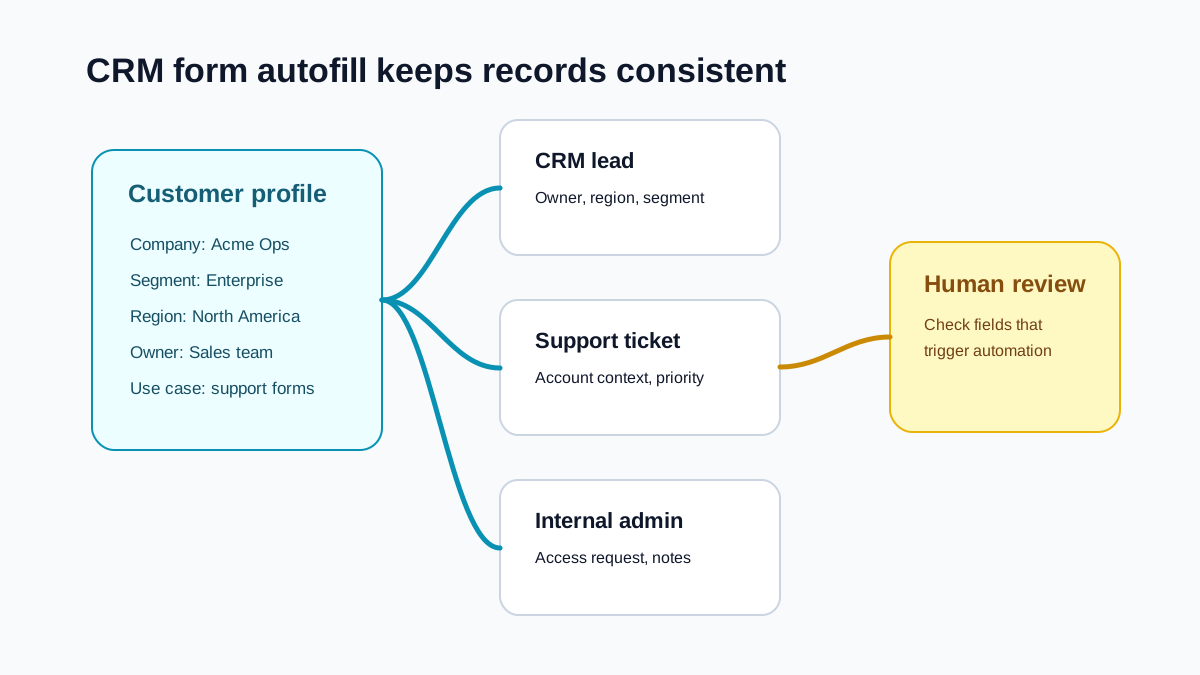
One person writes "United States." Another writes "USA." A third leaves the field blank. A support agent pastes the wrong account URL. A sales rep creates a duplicate because the company name had a suffix. Small errors become messy reporting, broken handoffs, and extra cleanup.
Internal tool form filling is boring work, but it affects the quality of the entire workflow. The CRM form autofill product guide covers ordinary visible native web forms; it does not claim a CRM API, native vendor integration, record lookup, or workflow automation.
Where repeated data entry happens
Teams often repeat the same information across:
- CRM lead and contact forms.
- Customer onboarding tools.
- Support ticket fields.
- Partner or vendor intake forms.
- Admin dashboards.
- Recruiting and applicant tracking tools.
- Billing request forms.
- Product feedback trackers.
- Compliance or access request systems.
The form changes, but the source information is often the same: customer name, company, website, role, region, plan, account owner, use case, notes, and next step.
What browser autofill cannot solve
Browser autofill can help with personal identity fields. It usually cannot understand business context.
For example:
- "Account owner" should not be your personal name.
- "Company URL" should not be your portfolio URL.
- "Business justification" should be based on the current request.
- "Customer segment" may need a specific internal vocabulary.
- "Priority" may depend on support impact or revenue tier.
These are not address fields. They are workflow fields. That is why teams search for data entry automation, CRM form autofill, and internal tool form filling.
Use saved profiles for recurring record types
A useful autofill setup starts with record types, not one giant universal profile.
Create separate saved profiles for:
- New sales lead.
- Existing customer contact.
- Enterprise account update.
- Support escalation.
- Vendor intake.
- Partner request.
- Recruiting candidate.
- Internal access request.
Each profile should include the fields that repeat for that workflow. It should also include notes about what should not be autofilled.
For example, an enterprise account profile might include standard region, company size format, account plan, and CRM note style. It should not automatically fill priority, legal status, or contract terms unless those values are known for the current record.
Standardize the language
Autofill works best when your team agrees on language.
Instead of letting every person write customer notes differently, define a short structure:
- Context: why this record exists.
- Source: where the information came from.
- Current state: what has happened.
- Next step: who owns the follow-up.
Example:
"Source: inbound demo request. Context: customer is evaluating autofill for internal support forms. Current state: awaiting security review. Next step: send extension privacy summary and schedule technical call."
This kind of saved structure keeps records useful without making them robotic.
Keep review in the workflow
CRM and internal systems often trigger downstream actions:
- Email campaigns.
- Sales sequences.
- Support SLAs.
- Billing workflows.
- Access permissions.
- Manager approvals.
- Revenue reports.
That is why review matters. A wrong dropdown can do more damage than a typo.
Before submitting an autofilled internal form, check:
- Company and contact identity.
- Owner, team, and territory.
- Pipeline stage or ticket status.
- Priority.
- Consent or subscription fields.
- Notes that mention a specific customer.
- Any field that triggers automation.
SmartAutoFill is designed around this review-first pattern. It can draft compatible repeated fields, but radio and checkbox state remains manual, custom widgets may not be fillable, and the final record should still be inspected by the person responsible for it. See the supported fields and data-handling boundaries for the current matrix.
When not to autofill
Some fields should remain manual unless your process is extremely mature.
Be careful with:
- Contract values.
- Legal terms.
- Security approvals.
- Refund decisions.
- Medical, financial, or highly sensitive customer data.
- Fields that grant access.
- Fields that trigger irreversible workflow actions.
Autofill should reduce clerical work, not hide decisions.
How SmartAutoFill fits sales and operations teams
SmartAutoFill helps teams that work across many web tools and cannot justify a custom integration for every form. Instead of waiting for engineering to connect every internal tool, users can save reusable profiles and draft fields directly in the browser.
That is especially useful when:
- The team uses several SaaS tools.
- Forms change often.
- Internal tools have inconsistent labels.
- Records need similar notes but not identical text.
- Users need to move faster without giving up review.
The product intent is simple: fewer repeated keystrokes, more consistent records, and safer AI-assisted form filling.
For a representative dry run, test a CRM-style form before using production data. Teams evaluating a broader operating model can continue with the data-entry team autofill guide.
Bottom line
CRM form autofill is valuable when it improves both speed and data quality. The best use cases are repetitive, structured, and reviewable. The risky use cases are sensitive, judgment-heavy, or connected to irreversible automation.
Use autofill to prepare the record. Use human review to own the record. That balance is what makes internal tool automation practical for real teams.