
SmartAutoFill has two practical filling styles: Safe Mode and More Mode. Both scan compatible visible fields, use selected profile or context data, and apply a draft to the page for review. The AI form filler product overview explains the general workflow; this guide focuses on what the mode switch does and does not change.
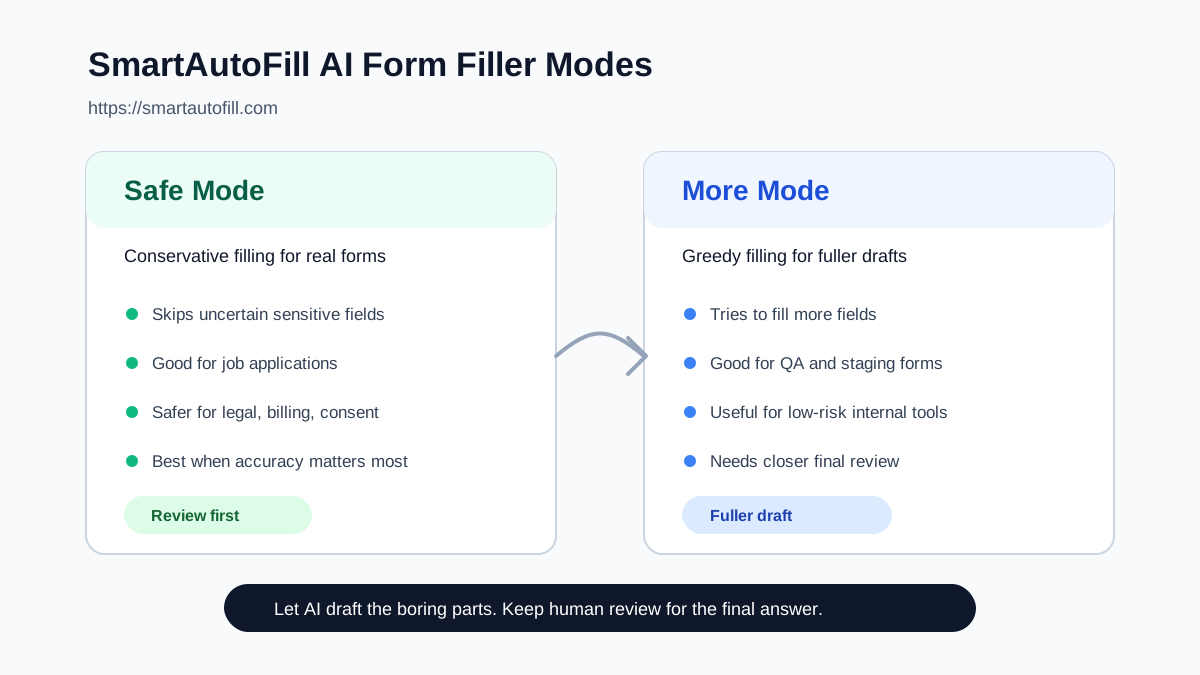
Safe Mode is the default for most real forms. In hosted mode, More can include additional supported candidates while the AI plans a fill, but final application still respects the same sensitive and unfillable guards. In custom-provider mode, those fields are excluded before planning. The full sensitive-field and data-handling boundaries matter more than the mode label.
What Safe Mode means
Safe Mode is designed for everyday use when correctness matters more than maximum coverage. It is conservative about fields that could create risk if filled incorrectly.
Safe Mode is a good fit for:
- Job applications with work authorization, salary, relocation, or voluntary disclosure fields.
- Customer onboarding forms that include contractual or billing details.
- Vendor intake forms that ask for tax, security, or compliance information.
- Internal tools where a wrong status, approval, or assignment could create follow-up work.
- Medical, insurance, financial, legal, or identity-related forms where the answer needs human judgment.
In Safe Mode, the extension keeps the candidate set conservative. Some fields should not be guessed from context. If the page asks for consent, certification, a legal statement, payment information, protected personal details, or anything that changes your rights or obligations, leave it for manual review.
This is why Safe Mode works well as the default for public websites and serious workflows. It removes repeated typing without pretending every field is safe to automate.
What More Mode means
More Mode is for users who want hosted planning to consider additional supported, non-sensitive candidates. It can make a low-risk draft broader, but it does not relax the final guard that skips sensitive or unfillable fields.
More Mode is useful when:
- You are testing a form and want fast coverage.
- You are filling a low-risk internal form.
- You already trust the saved profile for the current workflow.
- You want more compatible optional fields considered before editing the applied values.
- The form has many low-risk text fields and native selects.
For example, More Mode can be helpful on a QA staging form with many ordinary text fields, a low-risk customer discovery survey with optional written answers, or an internal CRM update where the same business context repeats across records.
The tradeoff is simple: More can produce a broader supported draft, so you must review the applied page carefully. It is not a blind submit mode, and SmartAutoFill leaves final submission to you.
Common use cases
Different workflows need different levels of caution. Here is a practical way to choose.
Job applications
Use Safe Mode for real applications. Job application autofill often involves ATS forms, work history supplied through pasted context or paid AI Materials, LinkedIn URLs, portfolio links, screening questions, work eligibility, and compensation expectations. Contact fields and profile links are usually safer draft candidates, but salary, sponsorship, relocation, and voluntary disclosure questions deserve review.
Use More Mode only when you are preparing a draft and you know you will read every generated answer before submitting.
Google Forms and surveys
For routine Google Forms, Safe Mode is usually enough when the form asks for identity, department, role, timezone, and short repeat answers. More Mode can help when the form is a low-risk survey or recurring questionnaire and you want a more complete first pass.
Handle consent checkboxes and other choice controls manually because the extension does not fill radio or checkbox state. Event-specific details, opinions, ratings, and confirmations also need fresh review.
CRM and internal tools
Hosted More can be useful for low-risk CRM updates, support intake, lead qualification, admin forms, and operations tools because the goal is often speed and consistency. If your saved context already contains the right business facts, considering additional compatible candidates can reduce manual entry.
Safe Mode is still better for approvals, refunds, billing changes, account access, customer commitments, or compliance fields.
QA testing and staging
More Mode is most defensible in QA. Testers often need forms filled with plausible values, not personal truth. It can broaden the draft for compatible text fields and native selects so the team can focus on validation; custom widgets and choice controls still need manual testing.
For production data, switch back to Safe Mode.
Vendor onboarding and procurement
Use Safe Mode by default. Vendor forms often combine ordinary company information with banking, tax, legal, insurance, security, and compliance fields. SmartAutoFill can help with reusable company descriptions, URLs, contacts, and business justifications, but sensitive sections should be reviewed manually.
A simple workflow
Use this pattern when you are not sure which mode to choose:
- Start in Safe Mode for the first run.
- Review what SmartAutoFill filled and what it skipped.
- If additional compatible fields are low-risk and repetitive, enable More Mode.
- Run the fill again for a broader supported draft.
- Review the page from top to bottom before submitting.
This gives you control without treating More as a guardrail bypass. Safe Mode keeps planning conservative. Hosted More can add candidates, while final sensitive and unfillable checks remain in place.
How to write a better profile for both modes
The quality of AI form filling depends on the quality of your saved profile. The extension can map context better when your answers are written clearly.
Good profile entries are:
- Specific enough to match real field labels.
- Short enough to fit into form fields.
- Written in the exact tone you want submitted.
- Split by scenario when different workflows need different answers.
- Free of placeholders like "TBD" or "change this later."
For Safe Mode, a clean profile reduces uncertainty. For More Mode, clean context is even more important because hosted planning may consider additional candidates.
The rule of thumb
Use Safe Mode when the form is real, sensitive, public, legal, financial, medical, employment-related, or customer-facing. Use More Mode when the form is low-risk, internal, repetitive, or part of testing.
SmartAutoFill is built to reduce repeated typing, not remove responsibility. The best workflow is still simple: let AI draft the boring parts, keep human review for judgment, and submit only when the page says what you mean.
You can compare fill modes on the public test form before using a production workflow. For the lower-risk scenario where More is most useful, continue with the QA and staging form filler guide.