
“Is an AI form filler safe?” is the right question to ask before you install one. A tool that fills a form may need to see field labels, page instructions, and some of the information you want to reuse. If it uses a hosted AI service, part of that request may leave your browser.
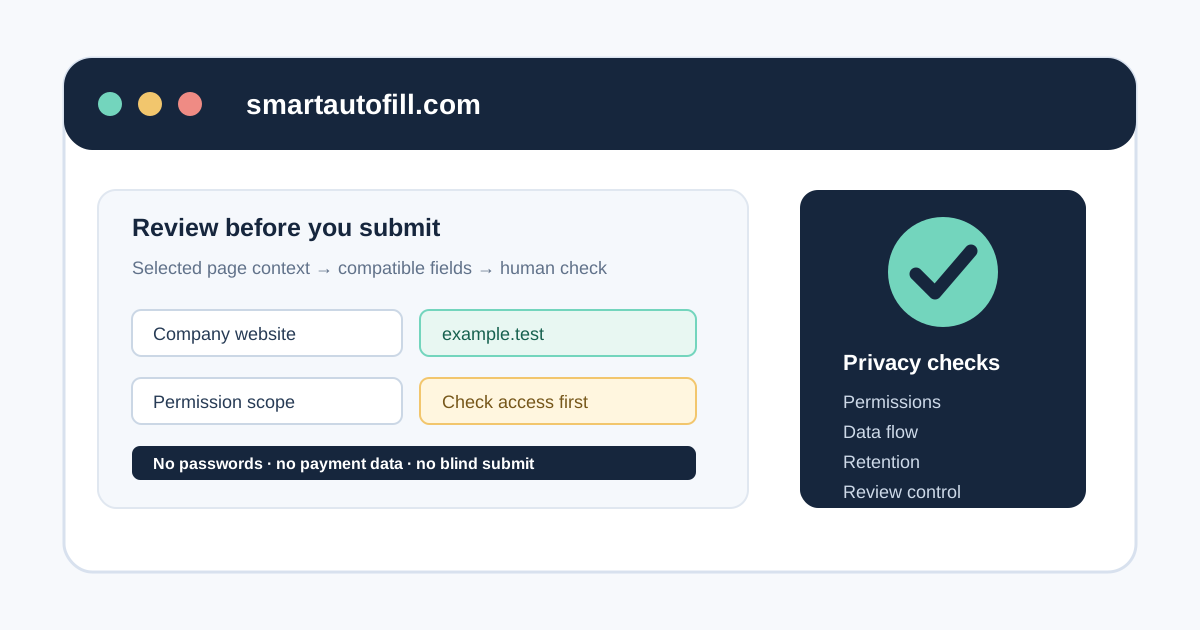
Safety is not a yes-or-no property of the category. It depends on the extension's permissions, the data it sends, how long that data is retained, what the AI provider does with it, and whether a person can review the result before anything consequential happens.
This checklist is for people comparing AI form filler Chrome extensions for applications, client intake, support work, operations, or other repetitive browser forms. It is also a useful way to decide when a browser extension is the wrong purchase.
The short answer
An AI form filler can be reasonable for low- and medium-risk forms when all of the following are true:
- You understand which page and field data it can access.
- The vendor explains what is sent to its backend and AI infrastructure providers.
- You can choose the profile or context used for the fill.
- The output stays reviewable on the page.
- You keep passwords, payment details, one-time codes, government identifiers, and final decisions out of the workflow.
It is a poor fit when the goal is to read every page in the background, bypass a security control, submit thousands of records, or automate a sensitive decision without an accountable reviewer.
1. Start with the permission prompt
Browser permissions are a capability boundary, not a decorative installation step. Chrome's documentation explains that permissions and host permissions tell the browser what an extension may access, and that some permissions produce warnings users see during installation.
Read the permission in plain language. The phrase “read and change your data on all websites” deserves more scrutiny than a tool that activates only on a user-selected tab or a named set of sites. Broad access does not prove that an extension is malicious; it does mean the extension could encounter more of your browsing activity.
The Chrome extension permissions documentation is a useful reference when the store listing feels vague. Compare the permission request with the product's actual job:
| Permission or capability | What to ask | Warning sign |
|---|---|---|
| Website or host access | Does the feature need every site, or only the pages where you use it? | A narrow utility asks for browser-wide access without an explanation |
| Content scripts or scripting | Does the extension need to inspect and modify the current form? | It can inject code but does not explain when it runs |
| Storage | What profile, context, settings, or history are stored? | No way to clear or export saved data |
| Clipboard access | Is copy and paste the actual feature? | The extension can read clipboard contents for an unrelated task |
| Downloads or file access | Does the workflow genuinely involve documents? | File access is bundled into a simple text-filling pitch |
| Tabs, history, or cookies | Why does a form filler need browsing or session metadata? | The permission is broader than the visible workflow |
The right question is not “Does this permission sound scary?” It is “Can the vendor explain why this permission is necessary, when it is used, and how to turn it off?”
After installation, open the extension's Details page and review its site access setting. If your browser allows it, prefer a specific-site list or user-initiated access for a tool that does not need to run everywhere. Recheck access after major updates.
2. Follow the data, not the marketing language
An AI form filler usually has several distinct data sources:
- The destination page: field labels, field types, nearby instructions, and sometimes the page origin or URL.
- The selected profile: reusable name, contact, company, work, education, or scenario information.
- Optional materials: text or documents you deliberately provide for a specific task.
- The generated plan: proposed values and any error or usage metadata returned by the service.
These are not interchangeable. A vendor may need selected field metadata to create a draft, but that does not automatically mean it needs the entire page, your browsing history, or every open tab.
Ask five concrete questions before using real information:
- Which fields and surrounding page context are sent?
- Is the page URL or domain included?
- Does the request go to the vendor's backend or directly to a model provider?
- Are prompts, page context, outputs, or logs stored?
- Are they used for support, analytics, product improvement, or model training?
The Chrome Web Store user-data policy gives a useful baseline: extensions handling user data should disclose their practices and use data for the feature's stated purpose. A privacy policy should make the browser-extension behavior understandable in ordinary language. “We may collect information to improve our services” is not enough to answer the questions above.
3. Check the privacy policy against the actual product
Do not read a privacy policy as a ritual. Use it as a map of the product's data flow, then compare it with the store listing and the behavior you observe in a low-risk test.
Look for named answers about:
- Account information and authentication.
- Selected form fields and page context.
- Profile, scenario, or saved-material storage.
- AI infrastructure or model providers.
- Logs, analytics, support access, and retention.
- Payment records and what the payment processor handles.
- Access, deletion, correction, and export requests.
If the extension advertises cloud AI but the policy never says where prompts or page data go, treat that as an unanswered question. If the policy says it does not collect page content but the feature cannot work without sending page content somewhere, ask for clarification before installing it on a sensitive browser profile.
For SmartAutoFill, the privacy policy states that hosted autofill requests can include selected field labels, field types, nearby page context, the page URL origin, and profile or context text that the user provides. It also explains that hosted requests may be processed by AI infrastructure providers and advises users to avoid passwords, government identifiers, payment card numbers, health records, and highly confidential business data unless they understand the risk.
That specificity matters more than a generic “privacy-first” label. It lets a buyer compare the documented behavior with the form they plan to use.
4. Separate autofill from password management
An AI form filler is not automatically a password manager, identity vault, or secure credential tool. In fact, passwords and authentication secrets should normally be excluded from an AI form-filling workflow.
Keep these values out of profiles, prompts, pasted context, and uploaded materials:
- Passwords and recovery codes.
- One-time passwords and authentication tokens.
- Private keys, API keys, and access tokens.
- Payment card numbers, bank details, and security codes.
- Government identity numbers and tax identifiers.
- Health information and highly confidential legal records.
Use a dedicated password manager for credentials and the browser's established security controls for payment information. If a form combines ordinary contact fields with a password or payment step, treat those as separate workflows. Fill or review the ordinary fields only if the service and your organization's policy allow it, then handle the protected fields through the appropriate system.
This boundary also helps with vendor selection. A product that claims to “fill anything automatically” may be optimizing for fewer clicks rather than a defensible risk model.
5. Look for review-first control
The safest useful AI form filler is usually a drafting tool, not an unattended submitter. It should help put a plausible value into a compatible field while leaving the user able to inspect, edit, skip, or remove it.
Before buying, verify that the tool:
- Shows which fields it plans to fill.
- Leaves ambiguous fields empty or visibly uncertain.
- Lets you choose the profile or scenario for the task.
- Does not silently click consent, signature, payment, or submit controls.
- Makes it easy to stop, disconnect, clear context, or remove the extension.
SmartAutoFill's product boundary is deliberately reviewable: it drafts and fills compatible fields on the current page, then leaves the user to check the result and submit through the form's own control. It is not a bulk application bot, a credential-stuffing tool, or a promise that every custom widget will work.
The supported fields and data-handling reference documents the current limits. Native text-like fields and some selects are the reliable center of the workflow; radio buttons, checkboxes, custom controls, and unusual page structures may need manual work. A field being technically fillable does not make its answer correct.
6. Test the smallest realistic workflow
Do not begin with a production account, a customer record, or a confidential application. Use a separate Chrome profile or a low-risk test page and keep the data synthetic.
The test should answer four questions:
- What access does the browser show during installation?
- What information is needed before a draft can be generated?
- Which fields change, and which fields stay untouched?
- Can you explain the data flow well enough for your team or security reviewer?
The public SmartAutoFill test page is a suitable starting point for a basic form-filling check. Use fake contact information and a harmless scenario. Then inspect the result at full size: required fields, long text, selects, custom components, and any values that look plausible but are not supported by your source context.
If you need richer source material, review AI Materials Pro pricing and the associated data-handling terms before uploading anything. “The file was only used once” is not a privacy conclusion; you still need to know where it went and how long related request data may remain.
7. Use the right mode for the risk
If a product offers multiple modes, treat them as different risk settings rather than different names for the same behavior. A conservative mode may consider only the most direct profile and page signals. A broader mode may consider additional compatible candidates or richer context.
For SmartAutoFill, Safe Mode and More Mode are useful concepts for making that choice explicit. Use Safe Mode for serious forms and low-risk, well-understood context. More Mode can be considered on lower-risk pages when additional context is helpful, but it does not make passwords, payment details, identity checks, consent, CAPTCHA, or final submission appropriate for automation.
No mode removes the need to check the answer. A model can misunderstand a field even when it receives the correct page and profile. The operator remains responsible for the content sent to another person or organization.
8. Know when not to use an AI form filler
An extension is the wrong tool when the desired outcome requires a different control plane. Do not use a general AI form filler for:
- Credential stuffing or account takeover.
- CAPTCHA, OTP, or security-control bypass.
- Password storage or payment-card entry.
- Mass spam, fake applications, or fabricated survey responses.
- Automated legal, medical, financial, tax, or identity decisions.
- Bulk submissions with no accountable person reviewing each record.
- Replacing an approved API, CRM, document system, RPA workflow, or audit platform.
Those are not merely “advanced use cases.” They change the authorization, governance, and failure consequences of the workflow. A browser helper can reduce typing; it does not create approval, provenance, or compliance controls that the business does not already have.
A five-minute buyer checklist
Before installing an AI form filler, write down the answers to these questions:
- Scope: Which sites, tabs, fields, files, and browser data can it access?
- Purpose: Does each permission map to the advertised form-filling job?
- Data flow: What selected page context and profile data leave the browser?
- Providers: Which hosting, logging, analytics, payment, and AI providers receive it?
- Retention: What is stored, for how long, and how can you delete or export it?
- Control: Can you select context, review values, skip fields, and submit manually?
- Fit: Is this a person completing changing forms, or a high-volume process that needs an API or governed automation platform?
If a vendor cannot answer those questions, do not compensate for the missing information with a smaller price or a more impressive demo.
The practical verdict
AI form filling is safest when its job is narrow and visible: use selected context to draft compatible fields on the form a person is already reviewing. It becomes harder to defend when the tool has unexplained browser-wide access, stores more information than the workflow needs, or treats final submission as a trivial click.
SmartAutoFill fits the review-first middle ground. It can help reuse a profile, scenario, or selected material across changing browser forms, while keeping sensitive fields and final submission with the user. Start with the AI form filler overview, test with fake data, read the privacy policy, and choose a paid plan only after the documented data flow fits your actual risk.