
Google Forms is often used for lightweight workflows that are not important enough to justify custom software but important enough to repeat every week. That is exactly why Google Forms autofill becomes useful.
The Google Forms autofill product guide focuses on compatible text and paragraph responses, not automated form submission or unsupported choice controls. Google also documents its own pre-filled form link workflow, which is useful when the form owner can define the initial answers directly.
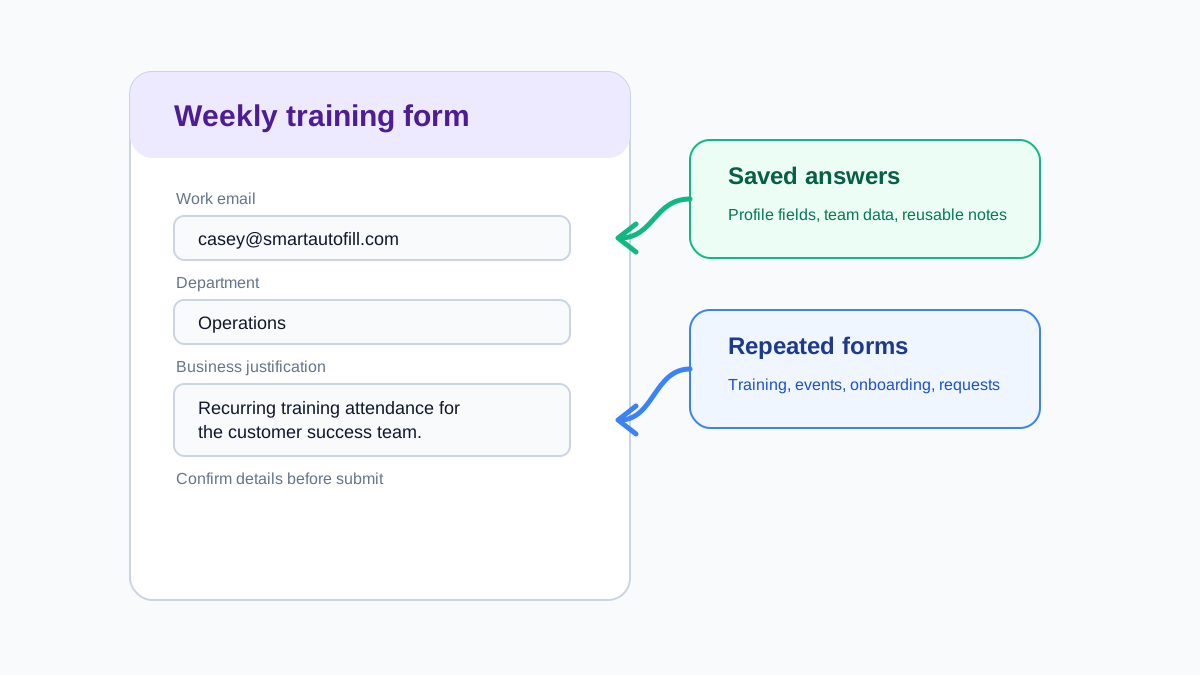
People use Google Forms for:
- Training confirmations.
- Event registration.
- Internal equipment requests.
- Customer discovery surveys.
- Vendor intake.
- Team check-ins.
- Course feedback.
- Access requests.
- Hiring questionnaires.
The forms are usually simple, but repetition adds friction. You type the same department, title, contact information, location, manager name, product line, or standard explanation again and again.
The right way to think about saved answers
Saved answers should not be treated as a final submission. They should be treated as a reusable starting point.
Good saved answers are:
- Stable: they do not change every week.
- Specific: they are written the way you want them to appear.
- Field-ready: they fit into common form fields without editing.
- Reviewable: you can quickly see whether they still apply.
Bad saved answers are:
- Too broad.
- Full of placeholders.
- Written for one form but reused everywhere.
- Sensitive in a way you do not want sent to random forms.
- Long enough that you stop reading them.
If a saved answer is too generic to review quickly, it is too generic to trust.
Build a saved answer profile
For repeated Google Forms, keep your profile practical. You do not need a full biography. You need the pieces that appear across forms.
Start with:
- Name.
- Email.
- Organization.
- Team or department.
- Role.
- Location or timezone.
- Manager or point of contact.
- Preferred communication channel.
- Standard billing or project code if your company uses one.
- Short descriptions of your work, product, or request type.
Then add scenario-specific saved answers. For example, if you often fill event forms, add dietary preferences and accessibility needs. If you fill vendor forms, add company description, website, tax or procurement notes, and security contact details. If you fill training forms, add job title, region, employee ID, and team name.
Where Google Forms autofill helps most
Google Forms autofill is useful when the form asks for a known answer with slightly different wording.
Examples:
- "Team" vs "Department".
- "Business unit" vs "Group".
- "Work email" vs "Company email".
- "What is your role?" vs "Job title".
- "Why are you requesting access?" vs "Business justification".
An AI-assisted form filler can draft the right answer by reading the question and matching it to your saved answers. This is especially useful for short-answer fields and paragraph fields where browser autofill usually does very little.
Do not skip review on repeated forms
Repeated forms create a quiet risk: the answer was correct last month, so you stop checking it.
Before submitting, review:
- Dates and event names.
- Team, manager, and project codes.
- Consent checkboxes.
- File uploads, which SmartAutoFill supports only for one matched paid hosted AI Material in a compatible native file input.
- Multiple choice fields.
- Paragraph answers that mention a specific event, client, or request.
The more familiar the form feels, the easier it is to miss a stale answer.
A practical workflow
Use this workflow for recurring forms:
- Create one general saved profile.
- Add small scenario notes for common form types.
- Run autofill after the form finishes loading.
- Review required fields first.
- Handle radio buttons and checkboxes manually, and verify any native select; custom dropdown widgets are not reliably fillable.
- Rewrite any paragraph answer that mentions this specific submission.
- Submit manually.
The goal is not to turn Google Forms into a fully automated workflow engine. The goal is to reduce repeated typing while keeping enough attention on the form to avoid bad submissions.
Team scenarios
Google Forms autofill can be especially helpful for teams when many people fill similar forms:
- A sales team registering for partner events.
- A support team submitting incident summaries.
- An operations team requesting access for contractors.
- A training team collecting attendance confirmations.
- A recruiting team collecting interview feedback.
The pattern is the same: the structure changes slightly, but the core answers repeat.
For teams, the safest approach is to define a shared answer style, not shared sensitive values. For example, give everyone a consistent format for "business justification" while letting each person keep their own contact details and role-specific notes.
How SmartAutoFill fits Google Forms
SmartAutoFill helps when a form is repetitive but not standardized. You save the facts once, then let the extension draft answers for compatible visible text and paragraph fields. It detects radio buttons and checkboxes but does not select them, and it leaves final submission to you.
That makes it useful for forms where speed matters, but correctness still matters more.
Bottom line
Google Forms autofill is most valuable when you treat saved answers as reusable drafts. Keep the profile clean, avoid storing answers you would not want reused, and always read the final page before submitting.
Used that way, autofill removes the boring part of repeat forms without turning routine work into careless work.
Before a real workflow, test compatible native fields before a real form and read the supported fields and Google Forms limitations. The repeat-questionnaire extension guide covers the adjacent survey-use case.