
There is a point where snippets stop feeling clever.
At first, a text expander is perfect. You save the email intro, the support reply, the CRM note, the product blurb, the scheduling line, the legal disclaimer your team approved. You type a shortcut, the text appears, and the day moves faster.
Then the form changes.
One page asks for "business reason." Another asks for "use case." A third asks for "describe the customer need." The answer should come from the same context, but it cannot be the same canned paragraph every time. That is where teams start comparing a text expander, browser autofill, and an AI form filler.
This is not a question of which category is better. It is a question of which one owns which job.
The short version
| Tool type | Best at | Weak at | Good SmartAutoFill fit? |
|---|---|---|---|
| Browser autofill | Saved names, addresses, payment details, contact info | Interpreting open-ended fields or business context | Use alongside SmartAutoFill, not instead of it |
| Text expander | Approved repeated text, snippets, macros, team messaging | Reading a changing form and choosing the right answer | Useful for fixed replies; weaker for messy forms |
| AI form filler | Reviewable drafts for compatible fields based on profile and context | Passwords, payment fields, legal commitments, blind submission | Yes, when fields vary and context matters |
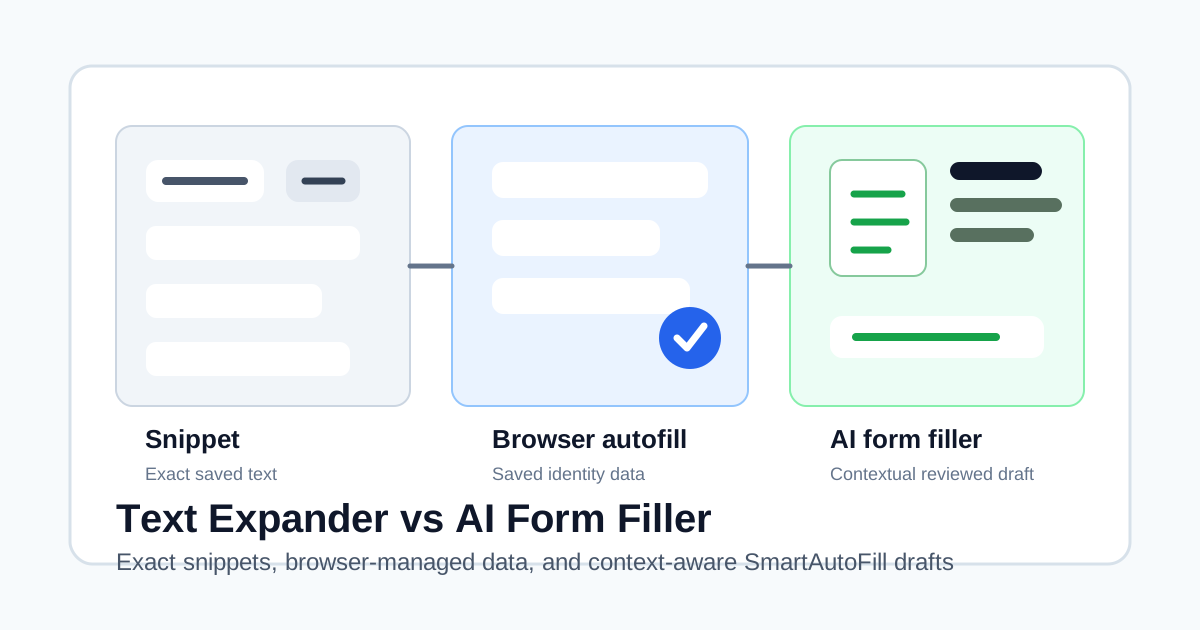
If the answer is always exactly the same, use a snippet. If the answer is saved identity or payment data, use browser autofill or a password manager. If the page asks for a field-specific answer based on reusable context, an AI form filler starts to make sense.
What text expanders are good at
Text expanders are strongest when the work is repeated and controlled.
Text Blaze describes a workflow built around saving snippets, giving them shortcuts, and inserting them across Chrome. Its public pages also talk about dynamic templates, forms, formulas, integrations, and shared folders for teams. TextExpander for Chrome makes a similar promise: create common phrases, messages, URLs, and templates, share them with a team, and expand the right text in the browser.
That is a real productivity category. It works well for:
- Support macros.
- Sales follow-up snippets.
- Recruiting outreach.
- Legal or compliance-approved wording.
- Internal status updates.
- Repeated URLs and signature blocks.
- Team-wide message consistency.
The point of a text expander is control. You know the phrase. You know when to insert it. You might add a variable or fill-in, but the template still belongs to you.
For many teams, that is exactly what they need. A support team with approved refund language should not ask an AI form filler to improvise policy. A sales team with a carefully written security note may want the same wording every time. A recruiter who uses a tested outreach line may prefer a snippet over a generated draft.
Where snippets start to break
Snippets get awkward when the same idea has to fit different fields.
Suppose you are filling a CRM record after a demo call. One tool asks for "pain point." Another asks for "summary." A third asks for "next step." A fourth asks for "qualification notes." You could build snippets for all of them, but now the user still has to decide which snippet applies, edit it, remove the wrong details, and keep the record from sounding copied.
That is even more obvious in onboarding and intake forms:
- "Describe your intended use."
- "What problem are you trying to solve?"
- "Which team will use this product?"
- "What systems are involved?"
- "Provide any context that helps us route this request."
- "Upload the supporting document if one is required."
Those are not empty boxes waiting for a canned answer. They are questions. The field label, nearby text, selected scenario, and saved profile all matter.
This is the handoff point. A text expander helps when you already know the exact text. An AI form filler helps when the form needs interpretation.
What browser autofill should keep doing
Chrome autofill is a separate category, and it should stay separate.
Google's Chrome help page explains that Chrome can fill saved information such as name, passwords, addresses, payment info, contact info, identity documents, and travel information. Chrome's developer guidance also frames autofill around helping users enter saved form data faster and avoid re-entering details.
That is useful and familiar. It is also not the same as an AI form filler.
Browser autofill should keep handling:
- Addresses.
- Basic contact information.
- Payment information in browser-supported flows.
- Passwords and passkeys through password management.
- Other browser-managed identity data.
SmartAutoFill should not try to replace those specialized systems. Passwords, cards, bank details, verification codes, and identity checks are not good targets for a general AI form filler. The healthier workflow is to let each tool keep its lane.
Use Chrome or a password manager for credentials and payments. Use a text expander for exact approved language. Use SmartAutoFill when a compatible web form needs a draft based on profile, scenario, and supporting context.
Where an AI form filler fits
An AI form filler is most useful when the page is repetitive, but not identical.
That sounds small. It is actually the everyday problem behind many business forms. A person has the facts, but the destination keeps changing.
Examples:
- A sales rep updates CRM fields after calls with slightly different notes.
- A founder fills partner intake forms with the same company facts but different wording.
- A job seeker reuses a resume and profile across ATS pages with custom questions.
- An operations teammate completes onboarding forms that ask for role, company, system, and workflow context.
- A support lead prepares escalation forms where the customer situation changes each time.
- A QA tester fills staging forms with realistic but safe data.
SmartAutoFill's job is to read visible compatible fields, use saved profile/context or paid AI Materials Pro, generate draft values, apply them to the page, and leave review in the user's hands.
The extension is not trying to be a hidden bot. It does not click submit for you. It does not make passwords, payment cards, CAPTCHA, signatures, or legal commitments safe to automate. The value is in the middle of the form: the repeated draft work that still needs judgment.
A practical decision rule
Use this rule before adding another tool to your browser:
If the output must be exact, use a snippet. If the field is browser-managed, use browser autofill. If the answer depends on the page, use an AI form filler.
That simple split prevents most bad automation decisions.
A text expander is better when:
- The wording is approved.
- The user should choose the snippet intentionally.
- The answer does not depend much on the page.
- The team needs the same message everywhere.
- A wrong rewrite would create brand, compliance, or support risk.
Browser autofill is better when:
- The data is saved identity, address, payment, travel, or password data.
- The browser already understands the field.
- You want the browser or wallet security model.
- The page is a checkout, login, or account flow.
SmartAutoFill is better when:
- The page has compatible text fields, textareas, native selects, or similar fillable controls.
- The form wording changes from site to site.
- The answer should use a saved profile, scenario, pasted context, or AI Materials Pro.
- You want a draft on the page, not an automatic final action.
- You are willing to review before submitting.
Team workflows: use both, but for different layers
The best setup for a team is often not one tool.
A support team might keep TextExpander or Text Blaze for approved policy snippets, while using SmartAutoFill for internal intake fields that depend on the current customer case. A sales team might keep snippets for approved positioning and use SmartAutoFill for CRM summaries and onboarding forms. A recruiting team might keep outreach templates and use SmartAutoFill for candidate notes or application-style fields.
The division is healthy:
- Snippets protect exact language.
- Browser autofill protects browser-managed personal and payment data.
- SmartAutoFill adapts reviewed context to changing forms.
That is also easier to manage. Teams do not need to rewrite every snippet as an AI prompt. They only need to identify the parts of the workflow where the page changes enough that fixed text creates cleanup.
What SmartAutoFill should not be used for
Some users searching for "form automation" want the wrong thing.
SmartAutoFill is not for:
- Spamming surveys or lead forms.
- Submitting job applications in bulk without review.
- Filling passwords, passkeys, payment cards, or bank details.
- Guessing legal, medical, insurance, tax, or eligibility statements.
- Bypassing CAPTCHA or anti-abuse controls.
- Clicking final submit buttons without a person checking the page.
Those are negative ICPs, and saying that clearly matters. Good SEO should attract the people a product can actually help. It should also filter out the people who will misuse it, churn quickly, or ask the product to do unsafe work.
The supported fields and data-handling reference is the practical boundary. It explains which fields SmartAutoFill handles, what remains manual, how hosted mode differs from custom-provider mode, and how AI Materials Pro fits into the workflow.
How to test the fit before changing your workflow
Before replacing snippets or adding an AI form filler to a team process, test one representative workflow.
Pick a form that has:
- A few stable profile fields.
- A few open-ended fields.
- At least one native select.
- A field that should stay manual.
- Enough context that a good draft is possible.
Then run the form three ways.
First, try browser autofill. Notice which fields it handles well and which fields it ignores.
Second, try your best snippets. Notice how much editing is still needed.
Third, try SmartAutoFill with the right scenario and profile context. Review what it fills, what it skips, and what still needs your judgment.
The goal is not to crown a winner. The goal is to assign the right tool to the right part of the workflow.
You can test SmartAutoFill on a public sample form before using it on a live business process. If your main workflow is CRM-style data entry, the CRM form autofill guide is the best next read. If you are comparing extensions, start with the public-feature comparison of AI form filler Chrome extensions.
Bottom line
Text expanders, browser autofill, and AI form fillers solve different problems.
Text expanders are best when the wording should stay fixed. Browser autofill is best when the browser already owns the data. SmartAutoFill is best when the form changes, the context matters, and the user wants a reviewable draft rather than a blind automation run.
That is the practical buying question: are you repeating text, repeating identity data, or repeating decisions across changing forms?
Once you answer that, the tool choice gets much easier.