
Client intake forms are supposed to make the first conversation clearer. In practice, the same agency, consultant, or service team may fill out a discovery form, a project brief, a kickoff questionnaire, and an internal handoff form for the same engagement. The facts are known. The fields are different. The copy-and-paste work is where the process starts to fray.
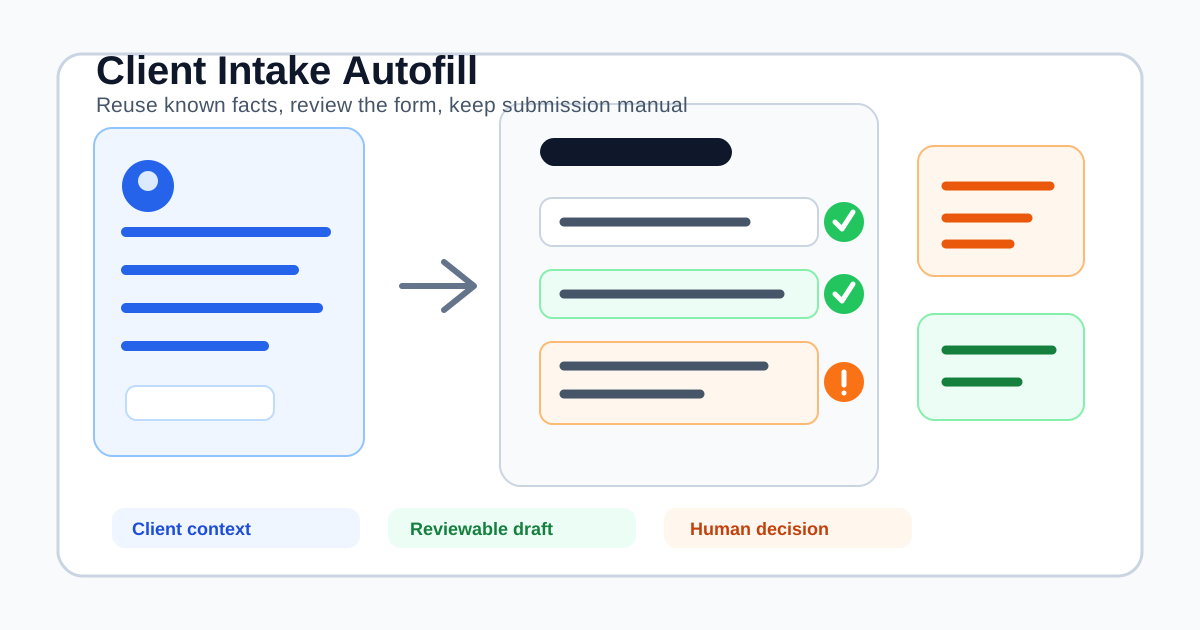
An AI form filler can help with that narrow part of the workflow: draft compatible fields from reusable profile data, project context, and selected materials, then leave the page ready for a person to review. It should not decide whether a prospect is a fit, approve a budget, accept legal terms, collect a password, or submit the form without you.
This guide explains where client intake form autofill fits, how to evaluate it, and when a dedicated intake or CRM system is the better purchase.
Start with the client journey, not the extension
A client intake form sits between interest and a useful next step. A prospect may be asking for a proposal, a discovery call, a design project, an implementation plan, or an ongoing service. The form should collect enough context to decide what happens next, without turning the first interaction into an audit.
HubSpot's client intake guide emphasizes fit, goals, challenges, budget, and project context. Its newer client onboarding questionnaire checklist adds the operational side: identify an owner, prepare for kickoff, and set expectations about timelines and responsibilities.
That gives a useful purchase journey for a form-filling tool:
- Qualify: capture the contact, company, service requested, goal, budget range, and timing.
- Prepare: reuse the service team's stable description, links, process notes, and approved answers.
- Review: check whether the answer is current, complete, and appropriate for this client.
- Handoff: move the accepted information into the next system or kickoff workflow.
SmartAutoFill helps most with step two and the repetitive parts of step three. It is not a client portal, lead router, proposal builder, CRM, conflict checker, contract signer, or payment processor.
Who benefits from client intake form autofill?
The best fit is a person who already has truthful, reusable context and repeatedly enters it into ordinary browser forms:
- An agency owner answering similar discovery forms for new projects.
- A consultant completing partner, subcontractor, or client onboarding questionnaires.
- A freelancer moving a project brief from email or notes into a platform's intake form.
- An operations lead copying approved company, service, and project details into internal handoff forms.
The business intent is concrete: reduce rekeying, improve consistency, and make the review step easier without buying a full replacement for the team's existing intake stack. If the real problem is routing, conditional logic, scheduling, signatures, analytics, or a shared record of submissions, start with an intake or CRM product. An extension works alongside that system when the bottleneck is the last mile of browser entry.
What to prepare before using an AI form filler
Autofill quality starts with the source material. A useful profile or context pack should contain facts that are stable enough to reuse and specific enough to map to a field:
- Company or practice name, website, service description, and standard contact details.
- Typical project types, deliverables, working preferences, and approved process language.
- Public case-study links, portfolio URLs, or a short description of the team's role.
- A current project brief when the form is about a specific engagement.
- A short list of answers that always need a human decision, such as budget, scope exceptions, conflicts, or contractual commitments.
For longer source material, paid AI Materials Pro can provide additional context where the current plan supports it. Review the pricing page for current credit and material limits. A source is not an instruction to copy every sentence into every form. It is evidence for a draft that still needs to match the question and the particular client.
Before using live client information, run a dry test on the public AI form filler test page. The supported fields and data-handling reference explains the current boundaries, including native controls and file inputs.
A practical review-first workflow
1. Separate reusable facts from decisions
Put stable facts in the reusable profile or selected context. Keep decisions in a review list. A company website can be reused. A project budget cannot be guessed from an old brief. A standard service description can be drafted. A new deadline still needs the account owner to confirm it.
This separation prevents a common failure mode: a tool appears accurate because it filled every box, while an outdated answer quietly became a commitment.
2. Scan the visible form first
Use Safe Mode for a real intake workflow. Let the extension identify compatible visible fields and propose values from the selected context. More Mode can be useful on a low-risk test form when you want additional supported candidates considered, but it does not remove the final review or make sensitive controls safe to automate.
The current product is designed for ordinary visible web forms. It does not claim a native integration with every client portal, CRM, form builder, or project management tool. A custom widget, radio group, checkbox, or unusual upload control may need manual handling.
3. Review by business risk
Do not review every field with the same level of attention. Use a short risk pass:
- Low risk: name, company website, service category, standard contact details, and approved boilerplate.
- Context-dependent: project goal, deliverables, timeline, stakeholders, budget range, and file selection.
- High risk: legal terms, privacy consent, identity verification, payment authorization, tax data, security commitments, credentials, and anything that changes eligibility or contractual scope.
The extension can draft the first group and sometimes help with the second. The third group belongs to a deliberate human decision or a purpose-built system. SmartAutoFill skips many sensitive fields by default; skipped fields are a useful boundary, not an error to work around.
4. Check attachments as carefully as text
An intake form may ask for a brief, portfolio, requirements document, or brand asset. Confirm the file is the right version, belongs to the right client, and is intended for that destination. When a compatible native file input is available, hosted mode may select a matched stored material, but you still inspect the chosen file and submit manually.
Never use a client intake form to collect passwords, API keys, payment card details, verification codes, or secrets. Data minimisation guidance from the ICO makes the broader principle clear: collect information that is adequate and relevant to the stated purpose, and limit it to what is necessary.
5. Treat submission as a separate step
After filling, read the form in its final state. Resolve blank required fields, stale answers, mismatched attachments, and conditional questions. Pause to review before you submit through the site's own control when you are satisfied. SmartAutoFill does not blindly auto-submit the form.
That final pause is especially important for an intake form because the response may trigger a proposal, a project record, a customer email, or a commitment about availability. Faster typing is useful; an unreviewed promise is not.
What a good client intake automation stack still needs
An extension only addresses one part of the workflow. A professional intake process also needs:
- A clear owner for every submission.
- A status such as new, reviewing, waiting for information, accepted, or declined.
- A follow-up path when the client has not supplied a brief or attachment.
- A destination for the reviewed record, such as a CRM, project system, or shared workspace.
- A retention and access policy appropriate to the information collected.
Asana's project intake guidance describes the complementary system: forms collect the request, fields route it, attachments travel with it, and stages make triage and review visible. That is a useful distinction. Use the intake platform to own the request and the extension to reduce repeated entry when a human is moving known context into a browser form. For the adjacent internal-record workflow, see the CRM form autofill guide.
The negative ICP: when SmartAutoFill is the wrong tool
Do not buy an AI form filler for:
- Spam, fake survey responses, or mass submissions.
- Credential stuffing, password storage, or bypassing verification controls.
- Payment, banking, tax, or identity-verification workflows.
- Legal, medical, or financial decisions that require specialist review.
- Blindly submitting applications, claims, consents, contracts, or declarations.
- Replacing an intake CRM, client portal, document-signing system, or regulated workflow.
Those are not edge cases that better prompting solves. They are different products with different accountability requirements. SmartAutoFill is a Chrome extension for reviewable drafts and compatible browser fields. The user remains responsible for accuracy, consent, confidentiality, and the final action.
A short buying checklist
Before you choose a client intake form filler, ask:
- Can it reuse a profile and selected project context without requiring the same copy-paste every time?
- Does it show the result on the page so a person can review it?
- What does it skip: passwords, payment fields, identity data, consent, or other sensitive controls?
- Can you test it on a public sample form before using client information?
- Does it make honest claims about native fields, custom controls, file inputs, and portal compatibility?
- Does it leave submission, legal commitments, and attachments under human control?
- Does the price and hosted-credit model match the volume and context you actually need?
If the answers fit a browser-based, review-first workflow, try SmartAutoFill on representative non-sensitive data. If you need routing, ownership, approvals, or a system of record, keep your intake platform and evaluate SmartAutoFill as the browser-side helper rather than the whole stack.
Client intake form autofill is valuable when it removes repeated typing without hiding the decisions that matter. The right workflow is simple: reuse known facts, draft compatible fields, inspect the page, check the files, and submit only when the response says what you mean.