
Employee onboarding is full of forms that look simple until HR has to chase the same answers across a welcome packet, an IT access request, a training registration form, a benefits portal, and a location-specific acknowledgement. The repeated fields are rarely the hardest part. The hard part is knowing which fields can be safely drafted from an approved employee profile and which fields should stay in a governed HRIS, payroll, identity, or signature workflow.
That is the right lens for evaluating an AI form filler for employee onboarding. SmartAutoFill can help with ordinary, reviewable browser forms: profile fields, role context, manager details, location, start date, department, equipment preferences, and short operational answers that HR already knows. It is not a payroll system, e-signature platform, HRIS, identity verification product, benefits administrator, or compliance decision-maker.
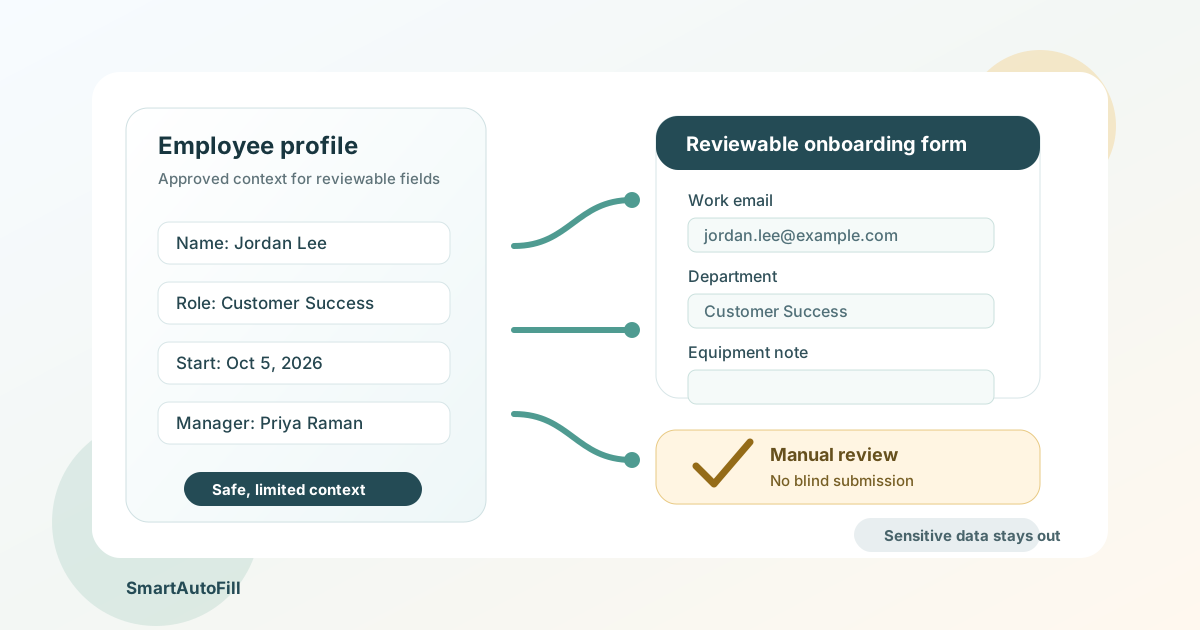
The useful middle ground is a review-first workflow: reuse trusted context for low-risk fields, inspect the filled page, correct anything that looks wrong, leave sensitive controls untouched, and submit manually only after the responsible person has reviewed the form.
The buyer intent behind this topic
People Ops teams usually do not search for "AI form filler" because they want a novelty extension. They search because onboarding is scattered across systems:
- A candidate becomes a new hire in one system, but IT needs a separate access request.
- A manager needs a structured onboarding plan, but the template asks for the same role, team, and start-date details again.
- A training vendor asks for employee details already present in an internal record.
- A benefits or payroll workflow asks for high-stakes details that should not be guessed or filled blindly.
The external market reflects the same split. Onboarding workflow tools describe task ownership, document collection, approvals, and audit trails. Official employment forms such as Form I-9 carry identity and employer-verification duties. The U.S. Citizenship and Immigration Services Form I-9 page explains that both employee and employer sections must be completed, with document review and retention obligations. The U.S. Department of Labor's new employee forms page lists common federal onboarding forms such as I-9, W-4, direct deposit, and demographic or administrative forms.
Those sources are useful because they point to a real purchasing question: where can browser form assistance reduce typing without weakening review, ownership, privacy, or compliance?
Where an AI form filler fits
An AI form filler is best used as a drafting layer for browser forms that already have a known source of truth. With SmartAutoFill, that source can be a saved profile or selected context. The extension scans compatible visible fields, considers labels and page context, drafts values, fills supported controls, and leaves the result on the page for review.
For employee onboarding, that works well when the answer is stable, already approved, and not a sensitive decision. Examples include:
- Preferred display name, work email, phone extension, office location, and time zone.
- Role title, department, manager, start date, employment type, and cost center when HR has already confirmed them.
- Standard equipment request notes, such as "MacBook Pro, US keyboard, external monitor" when the equipment policy allows that request.
- Training registration details for role-based onboarding courses.
- Internal directory profile fields such as team, location, pronouns if the employee chose to provide them, and onboarding buddy.
- Short background context that explains the role to an internal enablement or IT team.
This is not a replacement for a system of record. If the HRIS owns the employee record, the HRIS should remain the authority. If payroll owns bank and tax setup, payroll should remain the authority. If an e-signature workflow owns acknowledgements, the signature system should remain the authority.
SmartAutoFill is more useful for the browser forms around those systems: the extra intake screens, vendor portals, support requests, setup checklists, and departmental questionnaires that still ask for the same context by hand.
What should stay manual
Some onboarding fields are too consequential for a form filler to handle casually. SmartAutoFill's product boundaries are intentionally conservative here. It does not submit forms automatically, and sensitive controls such as password, CAPTCHA, payment, bank, government identifier, and identity-verification fields are excluded from filling.
For HR and People Ops, keep these areas manual or inside the purpose-built system that owns them:
- Form I-9 attestations, document choices, employer review, and identity or work-authorization document details.
- W-4 and state tax withholding choices.
- Direct deposit routing and account numbers.
- Social Security numbers, government identifiers, immigration identifiers, and date-of-birth fields when they are used for identity or legal verification.
- Benefits elections, beneficiary choices, dependents, medical or protected information, and coverage waivers.
- Signatures, consent, policy acknowledgement, arbitration, background-check authorization, and legal certification fields.
- Access permissions, admin roles, security exceptions, and privileged software approvals.
- Passwords, one-time codes, payment details, and any site control designed to prevent automation.
This boundary is not just caution. It is part of making automation credible. HR buyers do not need a tool that types faster into every field. They need a tool that reduces repeated typing while preserving the human checks that keep employee data, payroll, and compliance work intact.
A practical employee profile for reviewable forms
The strongest setup is not "let AI infer everything." It is a clean employee profile and a role context that the reviewer can understand.
For example, a People Ops coordinator might keep this kind of reusable context for ordinary forms:
Employee profile
Name: Jordan Lee
Work email: jordan.lee@example.com
Role: Customer Success Manager
Department: Customer Success
Manager: Priya Raman
Start date: 2026-10-05
Work location: Remote, California
Time zone: Pacific Time
Equipment preference: Company laptop, US keyboard, external monitor
Onboarding buddy: Morgan Chen
Training track: Customer-facing SaaS onboarding
That profile is useful for a training signup page, equipment request, internal directory, manager checklist, help desk ticket, or team onboarding form. It should not include payroll bank details, tax elections, government IDs, identity documents, passwords, or private medical or benefits information.
If the form asks for a sensitive value, the reviewer handles it outside the filler. If the form asks a judgment question, such as whether a person should receive privileged access to production data, the manager or security owner answers directly.
A review-first workflow HR can defend
A good workflow is boring in the best way: clear source, clear action, clear review.
- Start with the system of record. Confirm the employee's name, role, manager, start date, location, and team in the HRIS or offer record.
- Create or select a limited employee profile. Include only the context needed for reviewable forms.
- Open the browser form. Use SmartAutoFill on the active page after confirming the page is the intended destination.
- Fill compatible fields. Let the extension draft and place values into visible supported controls.
- Review the page. Check every filled value, edit mistakes, and leave excluded or sensitive fields untouched.
- Handle high-stakes steps in their proper system. Payroll, benefits, identity, legal, and access approvals stay with the responsible workflow.
- Submit manually. The reviewer, not the extension, decides when the form is ready.
That review-first workflow is also easier to train. HR coordinators can use the same rule every time: if the answer is routine, known, and low-risk, draft it from approved context. If it changes pay, identity, legal status, benefits, privacy, or access rights, stop and route it to the owner.
Safe Mode, More Mode, and HR risk
For employee onboarding, start with Safe Mode. Safe Mode is the better default when the form has employee data, compliance context, or a real operational consequence. It keeps the fill surface narrow and easier to review.
More Mode can be useful on lower-risk internal pages when labels are weak or a team is testing whether extra candidates improve coverage. It should not change the review policy. More Mode does not make password, payment, CAPTCHA, identity, or other sensitive fields appropriate for filling. The Safe Mode versus More Mode guide explains this product boundary in more detail.
Teams should test representative forms before using the extension in a live workflow. The public AI form filler test page is a simple place to see how native fields, text areas, and select controls behave. The supported fields and data-handling reference is the source for current field support, AI Materials limits, hosted request behavior, and manual-submission boundaries.
Where AI Materials can help
Paid AI Materials can provide richer source context for a fill. In an onboarding setting, that might mean adding a role brief, team onboarding plan, or approved equipment policy as context. It can also help when one eligible stored file should be matched to a compatible native file input.
Use this carefully. A role brief or equipment policy is usually reasonable context. A scanned passport, tax form, bank authorization, medical form, or confidential background-check record is not the kind of material a general form-filling workflow should handle casually. SmartAutoFill does not remove the need for data minimization. The reviewer still decides which source material belongs in the fill context and which records stay in locked HR systems.
For current paid source limits, credit packs, and hosted-material availability, see SmartAutoFill pricing.
When to use HRIS, workflow, or RPA instead
SmartAutoFill should not be the core employee onboarding system. If the problem is ownership, deadlines, signatures, audit history, record retention, or cross-team routing, use an HRIS, onboarding workflow tool, e-signature platform, or ticketing system.
If the task is a stable, repeated, back-office process with many steps, RPA may be a better fit. For example, creating a badge request every time a hire is approved may belong in a governed workflow or integration. The AI form filler versus RPA guide covers that distinction: RPA is usually for repeatable known processes, while an AI form filler is better for varied browser forms where a person still reviews the result.
If the task is a one-off internal form that asks for a mix of employee profile, role context, and short free-text answers, SmartAutoFill is a better fit than building an integration that nobody will maintain.
Negative ICP: who should not use this
The negative ICP matters because employee data is sensitive. SmartAutoFill is not the right tool for:
- Teams that want to bypass HRIS controls, payroll controls, identity checks, or e-signature records.
- Operators who want blind auto-submit, credential stuffing, fake employee creation, or bulk onboarding spam.
- Workflows that require guaranteed compatibility with custom widgets, embedded iframes, locked vendor portals, or jurisdiction-specific forms.
- Users who want the extension to decide tax, benefits, eligibility, immigration, health, access, or consent answers.
- Teams without a clear owner for employee data review.
If that is the goal, do not use a browser form filler. Use the governed system that owns the decision, data retention, and audit trail.
A five-minute buyer checklist
Before adding any AI form filler to employee onboarding, ask:
- Which onboarding forms are ordinary browser forms and which are owned by HRIS, payroll, identity, benefits, or e-signature systems?
- Which fields can be filled from a limited employee profile without exposing sensitive data?
- Who reviews each filled page before submission?
- Which fields must remain manual every time?
- Does the team understand that SmartAutoFill drafts and fills reviewable fields, then the user submits manually?
- Has the team tested the workflow on a safe sample form before using a live employee record?
- Are Chrome extension permissions, local storage, hosted requests, and retention policies acceptable for the selected use case?
This is the customer journey worth serving: a careful HR or operations buyer who wants less repeated typing, not less responsibility.
Bottom line
AI form filler for employee onboarding is valuable when it sits in the right layer. Use SmartAutoFill to draft routine, reviewable fields from an approved employee profile and role context. Keep legal, payroll, identity, benefits, access, signature, and consent decisions with the systems and people responsible for them.
That is less dramatic than "automate onboarding end to end," but it is the version HR teams can actually defend. Try the AI form filler overview, test a safe sample on the demo form, and use the data-handling reference to decide where the tool belongs in your onboarding stack.