
Support teams do not suffer from one giant form. They suffer from a hundred small ones.
A customer writes in. Someone updates the help desk ticket. Another person fills an escalation request. A bug report gets copied into an engineering tracker. An IT request needs category, priority, system, location, impact, and a short description. The same context keeps moving through slightly different forms.
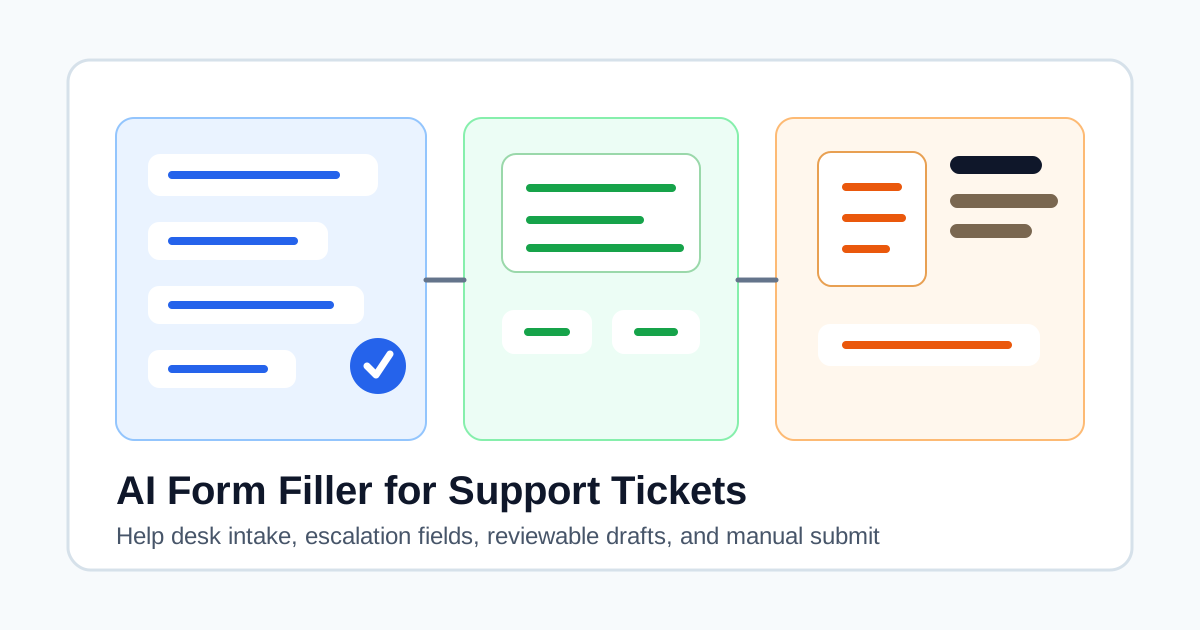
That is the quiet use case for an AI form filler. It is not about replacing Zendesk, Freshdesk, Jira Service Management, Intercom, HubSpot, or your internal ticketing tool. It is about reducing the repeated typing between them while keeping the human review that support work needs.
Why support intake forms are a strong fit
Support ticket forms are built to gather structured information. Zendesk's ticket-field documentation explains that custom fields can collect more information about a customer or issue, and those fields can appear on support request forms. Freshdesk documents ticket fields such as single-line text, multi-line text, dropdowns, dates, and dependent fields, while its ticket forms documentation describes forms as structured feedback channels. Jira Service Management request types also let admins choose which fields appear on a request form and work item view.
That tells us something important: ticketing systems are structured data tools, not just message inboxes.
The problem is that people still have to feed those tools.
Common fields include:
- Requester name and contact.
- Company, account, plan, region, or workspace.
- Product area, feature, system, or environment.
- Issue category and impact.
- Priority, urgency, and affected users.
- Steps to reproduce.
- Business context.
- Internal notes.
- Escalation reason.
- Links to logs, screenshots, tickets, or documents.
Some of those fields are stable facts. Some are short summaries. Some are judgment calls. Some should never be guessed.
SmartAutoFill fits the middle: compatible fields where the answer can be drafted from saved profile, selected scenario, pasted context, or paid AI Materials Pro, then reviewed on the page before anyone saves or submits the ticket.
ICP: who this article is for
This workflow is for teams that already care about support quality.
Good fits include:
- Support agents who move information between a help desk and internal tools.
- Customer success teams filling handoff or escalation forms.
- IT service desk teams completing request forms for employees.
- Support operations teams trying to standardize intake data.
- Founders or small teams handling support across several SaaS tools.
- QA or engineering teams receiving support context and converting it into bug reports.
The buying trigger is usually not "I want AI." It is closer to this:
"We keep typing the same customer and issue context into different forms, and the cleanup work is getting annoying."
That is a concrete pain. It has a cost in time, inconsistent records, missing fields, and slower handoffs.
Negative ICP: who should not use it
SmartAutoFill is not a support automation loophole.
It is not for:
- Creating fake support tickets.
- Filing spammy lead forms or abusive reports.
- Auto-submitting escalations without review.
- Guessing refund decisions, legal commitments, or policy exceptions.
- Filling passwords, payment details, bank fields, verification codes, or CAPTCHA.
- Pretending an issue was investigated when it was not.
Support work has accountability. A tool can draft a ticket field. It should not decide what the company owes a customer, whether an incident is severe, or whether a legal or security statement is true.
What an AI form filler can help with
The useful part of support autofill is usually boring, and that is the point.
SmartAutoFill can help draft compatible fields such as:
- Customer or company summary.
- Product area.
- Environment or browser context when supplied.
- Issue summary.
- Steps to reproduce from pasted notes.
- Expected and actual behavior.
- Internal handoff note.
- Escalation reason.
- Business impact summary.
- Follow-up owner or role when clearly supplied.
- Native select fields where the available option is clear.
This is especially helpful when the same support context is being copied into several places:
- A help desk ticket to an engineering issue.
- A customer email to an internal escalation form.
- A bug report to a QA tracking form.
- A chat transcript to a customer success handoff.
- A support request to an IT service management portal.
The form may change, but the underlying context does not start from zero.
What should stay manual
Some support fields should slow you down on purpose.
Review manually before filling or submitting:
- Refund approval.
- Service credit approval.
- Severity or incident declaration.
- Legal, privacy, security, or compliance statements.
- Contractual commitments.
- Account cancellation or data deletion.
- Protected health, financial, or identity information.
- Consent checkboxes and signatures.
- Final submit buttons.
Choice controls also need a clear technical boundary. SmartAutoFill works best with compatible visible native text fields, textareas, dates, and single-value native selects. It does not fill radio button or checkbox state, does not traverse iframes, and custom widgets are not reliably fillable. The supported fields and data-handling reference is the current source of truth.
SmartAutoFill workflow for a support ticket
A practical support workflow looks like this.
First, save a profile or scenario for the support context. For example:
Support context: B2B SaaS customer support. Use concise internal notes. Do not promise refunds, credits, or legal outcomes. Summaries should separate customer-reported facts from internal diagnosis.Then add the source context. This can be pasted notes, a transcript summary, a customer account summary, a product page, a troubleshooting checklist, or a paid AI Materials Pro source if your plan supports it.
Open the destination form and scan the page. SmartAutoFill reads visible compatible fields and nearby labels. It drafts values based on the supplied context, applies them to the page, and leaves the user to review the ticket before saving.
That final review is not decorative. It is where the support agent catches policy, severity, privacy, and customer-specific details.
Safe Mode or More Mode?
Use Safe Mode for live support records by default.
Support forms can contain sensitive customer data, account state, incident details, security claims, and internal notes. Safe Mode keeps the workflow conservative and makes it easier to see what still needs manual attention.
More Mode can be useful for low-risk internal drafts, staging tools, or forms where you want hosted planning to consider more supported candidates. It does not make sensitive or unsupported fields safe. It does not make checkboxes, radio buttons, passwords, payment fields, CAPTCHA, signatures, or final submission supported.
The rule is simple: if the field can change a customer outcome, slow down.
Read the Safe Mode vs More Mode guide before using broader planning on real support work.
Where snippets still win
Many support teams already use macros, saved replies, or text expanders. Keep them.
A snippet is better when the wording must be exact:
- Approved refund policy language.
- Security or privacy boilerplate.
- Escalation acknowledgement.
- SLA explanation.
- Troubleshooting steps that should not be rewritten.
- Closing messages.
An AI form filler is better when the field changes with the case:
- "Summarize the issue."
- "Why is this being escalated?"
- "What changed before the bug appeared?"
- "Which system is affected?"
- "What did the customer already try?"
For the broader decision, see the text expander vs AI form filler comparison. The short version: snippets protect exact wording; SmartAutoFill adapts reviewed context to changing fields.
A buyer's checklist
Before using any AI form filler in support operations, check seven things.
- Does the tool show what it filled before the record is saved?
- Does it avoid final submit buttons?
- Does it skip passwords, payment fields, verification codes, CAPTCHA, and identity checks?
- Can users supply context intentionally, rather than letting the model guess?
- Does it document supported field types and unsupported controls?
- Can the team test it on a sample form before using real customer data?
- Does the workflow fit your policy boundaries?
SmartAutoFill is strongest when the team wants a reviewed draft, not an invisible automation layer. You can try the public AI form filler test page before using it on a real ticket flow, then review pricing and AI Materials Pro limits on the pricing page.
Example: from customer note to escalation form
Imagine a customer writes:
Acme Co reports that CSV export fails for their EU workspace after they added custom fields. The issue happens in Chrome and Safari. It started after yesterday's data import. They need the export for a Monday compliance report. Support tried clearing cache and rerunning export with the same result.A good support escalation form may ask for:
- Account.
- Region.
- Product area.
- Short summary.
- Steps to reproduce.
- Business impact.
- Troubleshooting already attempted.
- Priority.
- Internal note.
Browser autofill will not understand that context. A snippet may be too rigid. SmartAutoFill can draft compatible text fields from the context, while the support agent still decides priority, checks account details, attaches evidence, and submits manually.
That is the practical value: less copy-paste, cleaner handoff, and no loss of ownership.
Bottom line
Support ticket autofill is not about turning customer service into a bot.
It is about helping the people already doing the work move accurate context into the right fields faster. Ticket systems and service desks depend on structured intake. SmartAutoFill helps when that structure changes from tool to tool, and when the answer should come from real context rather than a canned phrase.
Use snippets for approved language. Use browser autofill for browser-managed identity data. Use SmartAutoFill for compatible support and help desk fields that need a reviewed, context-aware draft.
Then read the ticket before you save it. That is still the job.