
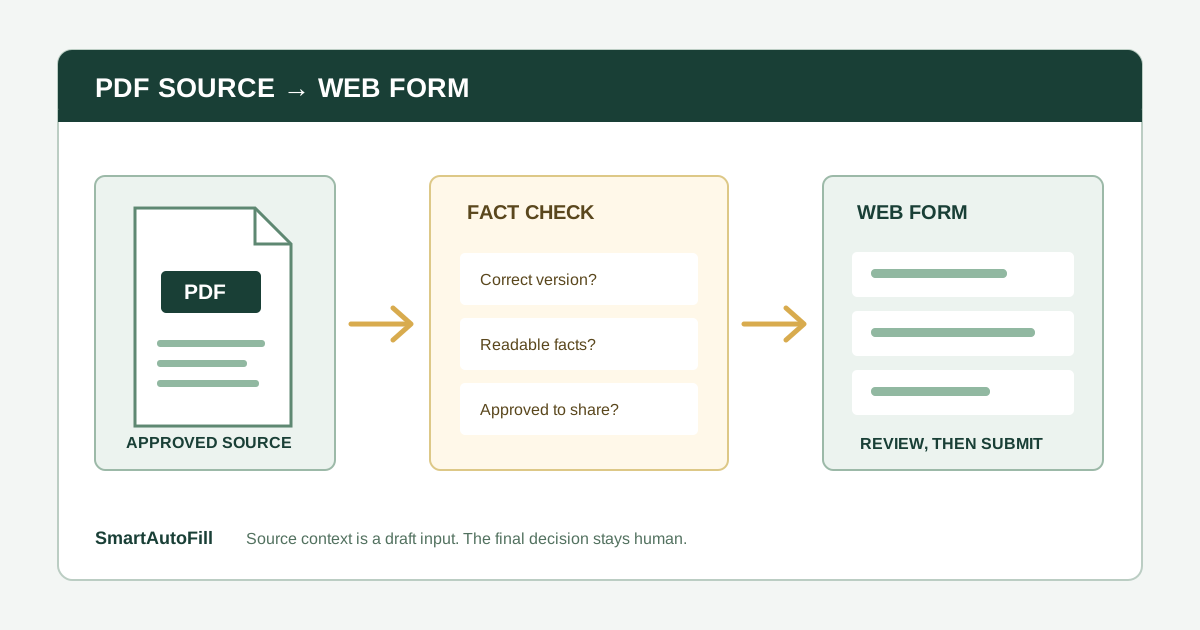
“Fill a form from a PDF” can describe two different jobs. You might have a company fact sheet in PDF format and need to copy its facts into a website. Or the form itself might be a PDF that needs to be completed and saved. A tool can do one without doing the other.
This guide is about the first job: PDF as source, web form as destination. SmartAutoFill can use an approved PDF as context through paid hosted AI Materials Pro, draft values for compatible visible browser fields, and apply those values for you to review. It does not edit a PDF form, navigate a portal, or submit a web form.
Start with the buyer's actual task
The target ICP is a person or small operations team with a few approved, current PDFs containing reusable business facts. They may need to enter a company profile, product specifications, certifications, or a service description into a third-party web form. The business intent is to reduce repeated typing while preserving the meaning and provenance of each answer.
This is a poor fit for a bulk document-processing operation, a team that needs automatic submission, or someone trying to extract secrets and identifiers from arbitrary files. The negative ICP also includes credential stuffing, payment autofill, fabricated claims, CAPTCHA bypass, and unreviewed legal or consent decisions.
The trust path starts before the extension: choose the right version of the PDF, confirm that its contents may be shared with the destination, and identify the facts that require an owner to sign off. After filling, compare the actual page with the source and submit manually.
Three meanings of “PDF form filling”
Before comparing products, ask the vendor to show which object is the PDF.
| Job | Input | Output | What to test |
|---|---|---|---|
| PDF as source | An approved document with facts | Draft values in a website's fields | Can the tool read relevant content and keep the answer reviewable? |
| PDF as destination | A fillable or flat PDF form | A completed PDF file | Can it place text in the actual PDF and let you inspect the result? |
| PDF as attachment | A file requested by the website | The file selected in a compatible upload field | Is it the right file, version, and recipient? |
Some products market more than one of these. For example, Instafill's browser-extension page describes filling PDF forms found online. That is a PDF destination workflow. It should not be confused with taking facts from a PDF and drafting answers inside an HTML form.
SmartAutoFill's fit is the first row. In paid hosted mode, AI Materials Pro can make selected PDF content available as context for a fill. A separate, limited attachment feature can match one eligible stored material to a compatible native file input. The file upload buying guide explains that distinction in detail.
Check the source PDF before asking AI to use it
A PDF is a container, not a guarantee that its contents are current, searchable, or suitable to disclose. Run a quick source review:
- Identify the owner and version. Is this the approved current fact sheet, or a sales draft from last year?
- Mark the shareable sections. A brochure may contain public product facts next to confidential customer names or internal prices.
- Resolve contradictions. If the PDF and the company website disagree, decide which source controls before filling the form.
- Check numbers and dates. Certifications, headcount, capacity, warranty terms, and product specifications can change.
- Test whether text is selectable. A scanned page may be only an image of text. Do not assume that every AI form tool has reliable OCR for every scan.
If the document is a scan, run OCR with a trusted document tool and review the recognized text before using it as source material. Adobe's guidance on correcting scanned PDF text shows why this matters: uncertain words can be marked for human correction. A single misread digit in a model number or date can become a plausible-looking form answer.
SmartAutoFill accepts PDF materials as context in paid hosted mode, but that is not a promise that every scanned, protected, poorly formatted, or image-heavy PDF will yield every fact correctly. For such documents, a reviewed short text summary may be a clearer source than the whole file.
Prepare a source-to-field review sheet
You do not need a complex system for a handful of forms. A short source-to-field review sheet makes the risky answers visible:
| Destination field | Approved source | Reviewer action |
|---|---|---|
| Company description | Current public fact sheet, page 1 | Edit for the form's audience and length |
| Product dimensions | Latest signed specification, page 3 | Confirm unit and exact product variant |
| Certification | Certificate register, not marketing copy | Verify status and expiry date |
| Client example | Approved case study | Confirm permission for this recipient |
| Revenue or forecast | Finance-owned record | Leave for finance to enter or approve |
| Terms and consent | Destination's current agreement | Authorized person handles manually |
This sheet is maintained by the user; SmartAutoFill does not produce a verified citation for every filled field. Its purpose is to make review faster and more accountable. If a field has no trustworthy source, leave it blank rather than asking the model to infer an answer.
A practical PDF-to-web-form workflow
1. Pick one relevant PDF
Start with the document that actually answers the website's questions. A narrow source set is easier to check than a folder of loosely related PDFs. Remove obsolete editions and avoid uploading files that include unnecessary personal, legal, or financial information.
If a short profile and pasted context already contain the needed facts, use those instead of a PDF. Paid AI Materials Pro is useful when the document adds meaningful context; it is not a requirement for every form. SmartAutoFill pricing describes the current hosted credits and materials options.
2. Check the page and field support
SmartAutoFill works on visible compatible fields on the current page. It reads field labels and nearby context, drafts a fill plan, and applies supported values for review. It is most reliable with ordinary browser controls. Custom widgets, embedded frames, radio buttons, checkboxes, and unusual upload controls may require manual work. See the supported fields and data-handling reference for current behavior.
Try the public AI form filler test page with a non-sensitive sample of the source content. Then inspect the real destination's controls. A successful test of a plain text box does not prove that a portal's custom editor will work.
3. Draft in Safe Mode first
Safe Mode is the conservative starting point for a consequential form. In hosted mode, More Mode can consider additional supported candidates during planning, but final application still respects sensitive and unfillable guards. The Safe Mode versus More Mode guide explains the tradeoff.
Custom-provider mode uses your selected provider key and does not include AI Materials or file filling. If your buying requirement is to use a PDF directly as a stored material in SmartAutoFill, check the paid hosted path rather than assuming both modes behave alike.
4. Compare each filled answer with its source
Review the actual page, not just a success message. Check names, dates, units, product variants, URLs, claims, and whether a long answer matches the field's intended purpose. A PDF paragraph may be accurate in its original context yet inappropriate when pasted into a question asking for a current commitment.
For high-risk facts, use the source-to-field sheet to locate the approved passage and ask its owner to confirm the answer. If a generated value cannot be traced to a reliable source, delete it or rewrite it manually.
5. Keep final decisions with the responsible person
Passwords, payment card or bank fields, sensitive identifiers, legal declarations, and consent should stay outside the drafting workflow. The responsible person must review terms, decide whether to attach a document, and submit the form. SmartAutoFill drafts and fills reviewable fields and avoids unsafe blind submission.
Questions to ask before you buy
Use one representative PDF and one representative web form in a trial. Ask:
- Does the tool treat the PDF as a source, a destination, or an attachment?
- Which file types and sizes are accepted in the plan I would buy?
- Can I choose a narrow source set instead of exposing an entire archive?
- What happens when the PDF is scanned, stale, or contradictory?
- Which visible fields can be filled, and which custom controls remain manual?
- Can I inspect and correct values on the page before sending anything?
- Does the tool submit automatically, or does a person make the final decision?
- Where does source content go, and what do the provider's retention terms say?
The privacy and permission checklist covers the last question in more detail. For a large volume of documents that must be classified, extracted, reconciled, and routed into a system of record, evaluate document-processing and integration software instead of expecting a browser form filler to become a bulk ETL pipeline.
The practical answer is narrow: a current, approved PDF can be useful context for a few reviewable web-form fields. The PDF does not make an answer true, and “PDF support” does not tell you which of the three jobs a product performs. Start with the AI form filler product overview, compare pricing, and test the workflow on the sample form before using it with a live document.